
Programs can be defined as sets of courses with optional completion order and other sequencing criteria. Organizations may refer to these as a learning path, learning plan, curriculum, or certification.
Programs for Moodle is a general tool that can be used in different ways, such as:
- Bulk enrolling learners into sets of courses and establishing a clearly defined learning path with completion criteria.
- Creation of non-public course catalogue where visibility is controlled by cohort membership.
- Delegation of individual course enrolments through programs outside of the course context.
Software implementation of programs can be divided into:
- program visibility - controlling who can see a program and related courses in Program catalogue
- program allocation - granting of access to a program and its courses
- program completion - tracking of program completion and enforcing of course completion order
- program notifications
Programs can be created in system or course category context levels. By default only users with Manager and Editing teacher roles can access the program management user interface.
Create a new program
To create a new program, navigate to Site administration > General > Programs > Program management and either click on the Add program button or click the vertical ellipsis and Add program (these depend on Open LMS product and version.) You will then see a pop-up screen and a range of program details.
- Program name (Required): The name of the program which is displayed in the list of active programs and the users' dashboards.
- ID number (Required): Unique ID number that is used by the Upload user tool and web services
- Context (Required): This defines where a program lives, in a tenant (for Open LMS WORK), a category, or at the system level.
- Course groups: If enabled, users will be added to a course group when they are enrolled in the course. The group's name is the same as the program; it will be created automatically when it doesn't exist.
- Program image: Program picture, which is displayed on users' dashboards. Supported formats are JPG, PNG.
- Program description: Summary of the program which is displayed on the users’ dashboard.
Site managers may access the program management interface from Site administration > Programs > Program management. Other users with the View program management capability can use a workaround by clicking Program catalogue link in the My programs dashboard block and then Program management button in the Program catalogue.
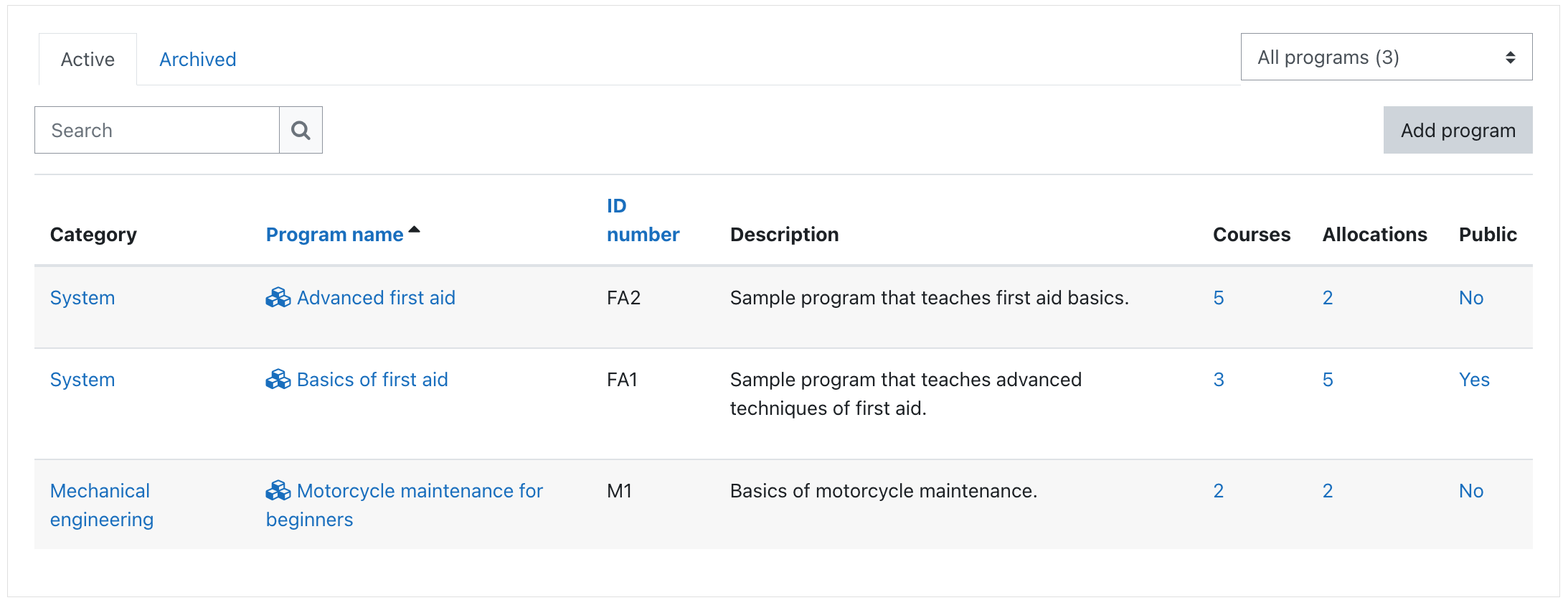
Program management capabilities
Following capabilities are used to control access to program management:
- View program management (enrol/programs:view) - browse programs in system or course category, view program details and allocated users.
- Add and update programs (enrol/programs:edit) - create programs and update existing program settings
- Delete programs (enrol/programs:delete) - delete programs and all user allocations
- Add course to programs (enrol/programs:addcourse) - course level capability allowing user to add the course to any programs where they have enrol/programs:edit capability
- Allocate students to programs (enrol/programs:allocate) - the meaning is defined by allocation source, for manual allocation it allows user to allocate and deallocate students manually
- Manage other completion evidence (enrol/programs:manageevidence) - allows user to provide alternative completion evidence for course or course set
- Advanced program administration (enrol/programs:admin) - special capability for risky and low level operations related to programs and allocations